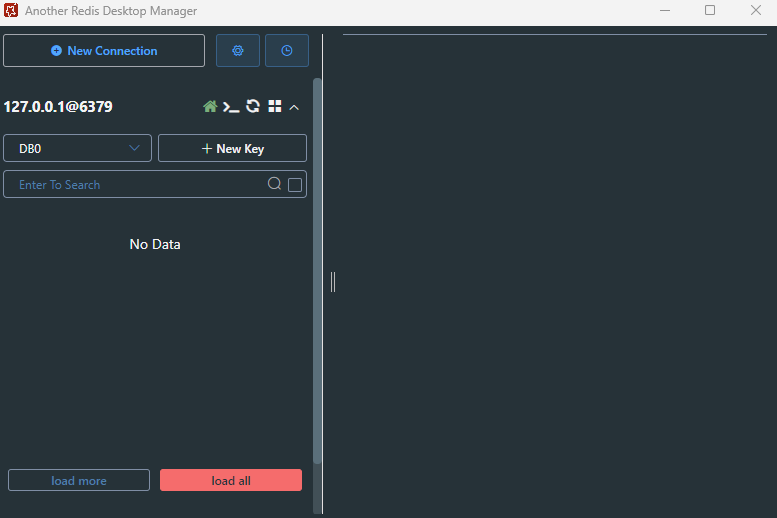
If you’re new to Valkey, the open-source fork of Redis, and want a local setup with a GUI, this guide walks you through running Valkey in Docker on Windows and connecting to it using AnotherRedisDesktopManager (RDM).
Run Valkey in Docker
Create a folder, e.g.
C:\apps\valkeyInside that folder, create a file called
docker-compose.ymlwith the following content
services:
valkey:
image: valkey/valkey-bundle:latest
container_name: valkey
ports:
- "6379:6379"
volumes:
- ./valkey-data:/data # stores data in local folder next to the compose file
command: valkey-server --save 60 1 --loglevel warning
restart: unless-stopped
Open CMD in that folder and run:
docker compose up -d
Connect with AnotherRedisDesktopManager
Test It
- Access Terminal though Docker and type in: valkey-cli then you will be connect when you see 127.0.0.1:6379 – you might need to set a username, password and permission if you are using AWS ElasticCache Redis or ValKey
- Once connected, add a new value using: SET user “khalil” as example
- then check the Another Redis Desktop Manager
Final Notes
Valkey uses the Redis protocol, so any Redis-compatible tools work.
Your data is stored locally in the
valkey-datafolder.Don’t expose Valkey to the public internet without securing it.
- Use AWS for production – https://aws.amazon.com/elasticache/what-is-valkey/